
Article

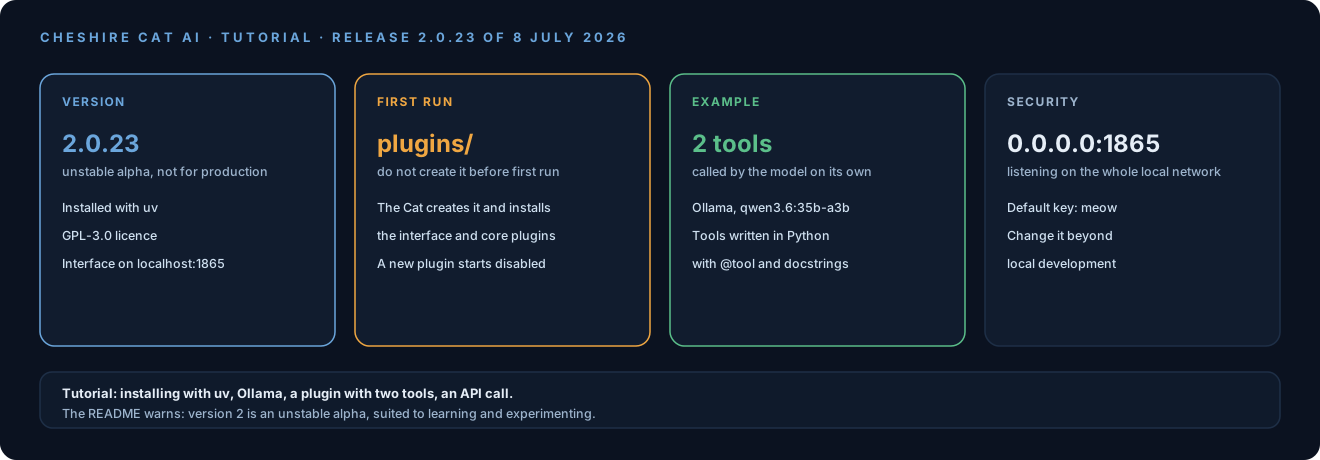
Cheshire Cat AI is an Italian open-source framework for building AI agents, created by Piero Savastano and released under the GPL-3.0 licence. The README presents it as the framework to learn how agents work, with education and research as its main use. Version 2 changes a lot from the first: it installs as a Python package and agents are written as classes with their own tools.
The README warns that version 2 is an unstable alpha (with possible breaking changes) and does not yet recommend it for production. The tutorial below is for understanding and experimenting.
At noze we have been using it in our projects for a long time. The examples below refer to 2.0.23, released on 8 July 2026, with an open-weight model served by Ollama (here qwen3.6:35b-a3b). You need a model that supports tool calling.
1. Installation
All you need is uv, the Python package manager. In an empty folder:
uv init --bare
uv add cheshire-cat-ai
uv run ccat
On first run the Cat creates the plugins/ and data/ folders and installs the core plugins, including the web interface. Do not create plugins/ before the first run: if the folder already exists, the core plugins are not copied and there is no interface.
- Web interface:
http://localhost:1865 - REST API playground:
http://localhost:1865/docs
2. Connecting Ollama
A fresh install uses a placeholder model. To use Ollama, a config.py file in the project folder is enough:
DEFAULT_LLM = "ollama:qwen3.6:35b-a3b"The format is provider:model. The Ollama provider connects to http://localhost:11434/v1; for another address use the OLLAMA_URL environment variable. Alternatively you can pick the model from the interface settings.
Restart the Cat and try the default agent:
curl -X POST http://localhost:1865/agents/default/message \
  -H "Authorization: meow" \
  -H "Content-Type: application/json" \
  -d '{"messages":[{"role":"user","content":[{"type":"text","text":"Hi, who are you?"}]}],"stream":false}'
meow is the default key for local development.
3. An agent with two tools
We build a help desk assistant that looks up ticket status. The structure:
plugins/
└── help_desk/
    ├── plugin.json
└── help_desk.pyplugin.json:
{
  "name": "Help Desk",
  "description": "Assistant that checks ticket status with two tools."
}help_desk.py:
from cat import Agent, tool

TICKETS = {
    "T-101": {"status": "open", "priority": "high", "subject": "VPN will not connect"},
    "T-102": {"status": "closed", "priority": "low", "subject": "Password change"},
}


class HelpDesk(Agent):
    slug = "help_desk"
    name = "Help Desk"
    description = "Answers questions on ticket status."
    system_prompt = (
        "You are the internal help desk assistant. Answer briefly. "
        "For the status of a ticket always use the tools, never make it up."
    )

    @tool
    def ticket_status(self, code: str) -> str:
        """Status and priority of a ticket. Input: the ticket code, for example T-101."""
        t = TICKETS.get(code.upper())
        if not t:
            return f"No ticket {code}"
        return f"{code}: {t['subject']}, status {t['status']}, priority {t['priority']}"

    @tool
    def open_tickets(self) -> str:
        """List of tickets that are still open."""
        open_ = [c for c, t in TICKETS.items() if t["status"] == "open"]
        return ", ".join(open_) or "No open tickets"
Each tool’s docstring is the description the model reads to decide when to use it, so it is worth writing carefully. In a real case the two functions would query the ticketing system.
4. Activating the plugin
A new plugin starts disabled. Enable it from the Plugins tab of the interface or via the API:
curl -X PUT http://localhost:1865/plugins/help_desk/toggle -H "Authorization: meow"The endpoint flips the state: called on a plugin that is already active, it disables it. Check the state with GET /plugins/help_desk. Once active, the agent appears in GET /agents.
5. Trying it
curl -X POST http://localhost:1865/agents/help_desk/message \
  -H "Authorization: meow" \
  -H "Content-Type: application/json" \
  -d '{"messages":[{"role":"user","content":[{"type":"text","text":"What is the status of ticket T-101? And which tickets are still open?"}]}],"stream":false}'
The model calls ticket_status with T-101 and open_tickets on its own, then answers, for example, that T-101 is open with high priority, for a VPN connection problem, and is the only open ticket. The JSON response contains the whole sequence: tool calls, arguments, results and final text. It is the most direct way to see what an agent does.
Two security notes
- The Cat listens on all network interfaces (
0.0.0.0:1865): other devices on your local network can reach it. - The
meowkey is the default one: the documentation asks you to change it before any use beyond local development. The instructions are in the Deploy section of the documentation.
What we think
Version 2’s class model makes an agent readable in a few lines: a prompt, a few Python functions with their descriptions and an endpoint to query it. With an open-weight model on Ollama everything stays on your own machine. The response shows every tool call with its arguments and results, a good starting point for understanding how agents work before choosing a framework for production.